The Cloud Is Not a Folder in the Sky
Understand what cloud storage does behind a familiar folder view, where files may be handled, and which settings to check before you rely on it.
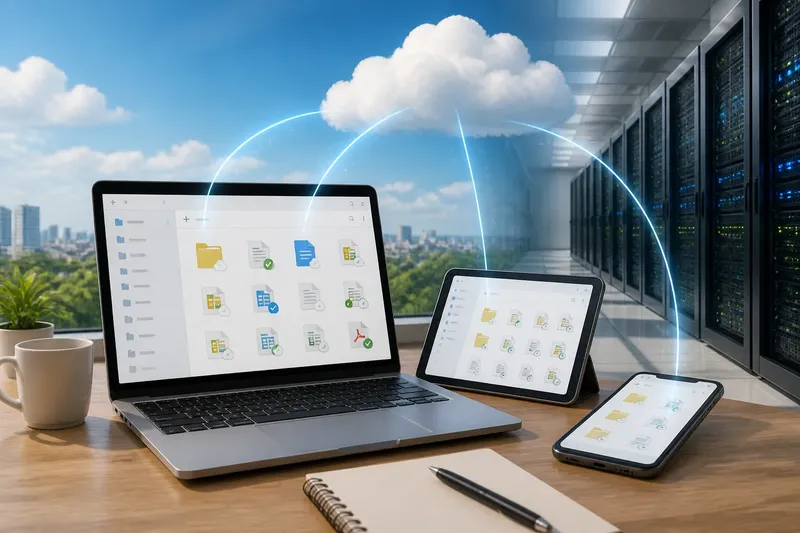
The common mistake with cloud storage is to treat its folder icon as proof that a file lives in one simple, private place. That assumption can cost you control: a document may be synchronised across devices, retained in a service account, or shared through permissions you did not mean to grant. The cloud is a useful metaphor, but it is not a folder in the sky.
What does “the cloud” mean for a file?
Cloud storage means that a provider uses computers and storage systems elsewhere to keep and serve your data over a network. You interact with that service through an app or website, while the provider’s systems handle the underlying storage and access requests.
The word “cloud” groups together many physical and software components. A file may be stored on a storage device in a data centre, while other systems manage your account, apply permissions, keep copies for resilience, or make the file available to an app. The details depend on the service.
This does not mean every file is constantly travelling through the internet. A device may hold a local copy for offline access, or the app may download the file only when you open it. The cloud describes the service arrangement, not a single moment-by-moment location for every byte.
Think of the cloud as a service you reach, rather than a place you can point to on a map. The provider’s infrastructure does the work behind the screen.
Why does cloud storage look like an ordinary folder?
A familiar folder view lets you browse names, make subfolders and open files without learning how the service is built. The app translates those everyday actions into requests to the provider and may also coordinate changes with copies on your devices.
That familiar view can hide important distinctions. A folder on your laptop is generally part of that device’s file system. A folder displayed by a cloud app might represent an online collection, a locally synchronised copy, or both. The icon alone does not tell you which arrangement is active.
Imagine you save a document in a folder called “Work” inside a cloud drive on your laptop. The app may upload it to your account and then make it available on your tablet; if you edit it on the tablet, the service may send the changed version back. You would expect to see the latest version on both devices once synchronisation completes, but that view does not reveal the provider’s storage design or every copy it maintains.
Look for status labels such as “online only”, “available offline” or “sync pending”. Their wording varies, but they can help distinguish a file that is accessible through the service from one that is also stored locally.
Where are cloud files actually stored?
They are kept on storage systems operated by the provider or by infrastructure partners. A service might use more than one data centre or retain additional copies, but an ordinary folder view usually does not identify the specific machine holding a file.
Even an account setting that names a region may describe a policy or storage area, not a precise physical address for each file. Some services separate data across systems for availability, processing or backup. The folder you see is an organised view of your account, not a window onto a particular server.
For personal use, the practical question is often not “Which exact disk has this file?” but “Who operates the service, what account controls access, and what does the provider say about storage and retention?” Business, legal or regulated information may require closer review of provider terms and local requirements.
What happens when you upload, edit or delete a file?
Uploading sends data from your device to the service, where it is associated with your account and handled according to the provider’s systems and policies. The service may create a preview, index the file for search, or process it to support a feature. Which actions occur depends on the product and its settings.
Editing can involve a local copy, an online editor, or a mixture of the two. If two devices make changes before they synchronise, the service may merge the edits, keep a separate conflicted copy, or ask you to choose. Check the app’s conflict notice before deleting either version.
Deleting a file from a cloud folder may remove it from synchronised devices too. It may then remain in a recycle bin or retention system for a period set by the service, or it may be removed under a different process. If you need to preserve something, confirm the service’s deletion and recovery behaviour rather than assuming a visible folder is the only copy.
Before relying on a file as your only copy, check whether it is available offline and whether you have a separate backup you control.
Who can access files in a cloud folder?
Access is shaped by account sign-in, sharing permissions and the provider’s technical operation. A file may be private to your account, shared with named people, or accessible to anyone who has a link, depending on the choices offered and the settings you select.
Check the sharing panel for the audience, each person’s role and whether link access is enabled. “Can view” and “can edit” are different permissions; an editor may be able to change or move content, while a viewer should have more limited access. Remove old invitations and links when they are no longer needed.
Account security matters because the folder view follows the account. Use a strong, unique password and turn on multifactor authentication if the service offers it. If another person can sign in as you, they may see files that appear private within the app.
Providers also operate the systems that store and serve files. Their staff access rules, security practices and legal obligations are described in service policies, which may be relevant for confidential or sensitive material. For those situations, consult the provider’s terms and, where needed, a qualified privacy or legal professional.
What should you check before trusting a cloud folder?
Check the service’s own labels and instructions, since features and terminology differ. For important files, review these points in the app and account settings:
- Sync status: Is the latest change uploaded, or is the app still waiting to synchronise?
- Offline access: Is a local copy available if the network is unavailable?
- Sharing: Which people or links can open the file, and can they edit it?
- Recovery: Is there a recycle bin, version history or another route to restore a change?
- Account security: Are sign-in alerts and multifactor authentication available and enabled?
- Independent backup: Do you have another copy that does not depend on the same account?
These checks answer different questions: whether the file is current, reachable, appropriately shared and recoverable. A single folder icon cannot answer all of them.
Which cloud-storage questions come up most often?
Does cloud storage mean my file is online only?
No. Some services keep a local copy, some download a file when needed, and some let you choose which folders stay on a device. Check the sync or offline settings for that particular app.
Can I use cloud files without an internet connection?
Only if the relevant files are already stored on your device or the app supports the task offline. Changes made offline may need to synchronise later, so check the app’s status before assuming they have reached your account.
Does deleting a cloud file erase every copy?
Not necessarily. The file may remain in a recovery area, version history or another system under the provider’s retention rules. Review the service’s deletion information if permanent removal matters.
Is a shared link the same as a private folder?
No. A link can give access beyond the people you invited directly, depending on its settings. Check whether it is restricted to named accounts or available to anyone who obtains the link.
How should you think about the cloud day to day?
Treat cloud storage as a service with settings, policies and dependencies, not as a hidden drawer that behaves exactly like your laptop. The folder view is still useful: it helps you organise and open files. Just pair it with checks for sync, sharing, offline access and recovery.
When deciding where to put a file, consider its sensitivity, who needs access and whether you can afford to lose access to the account. For routine documents, a cloud folder may be convenient; for material that needs careful handling, review the provider’s controls and keep an appropriate separate copy. Understanding what cloud storage means starts with noticing what the friendly folder view leaves out.