A Clearer Route Through a Crowded Browser Tab Bar
A crowded browser tab bar is easier to manage when you sort tabs by what you need now, what deserves keeping and what can safely be closed.
The common mistake with a crowded browser tab bar is to close tabs by whichever title happens to be visible. That can remove the address you need for the task in front of you, while leaving several pages open only because they are familiar. Sort tabs by their next use instead, and the bar becomes a small working surface rather than a test of memory.
Which tab matters for the task in front of you?
Start with the immediate need: the page you are actively reading, filling in or using to make a decision. Keep it close to the front, where its title and controls are easy to reach. If a task depends on a sequence of pages, keep the page you are acting on and the page that supplies its essential detail together.
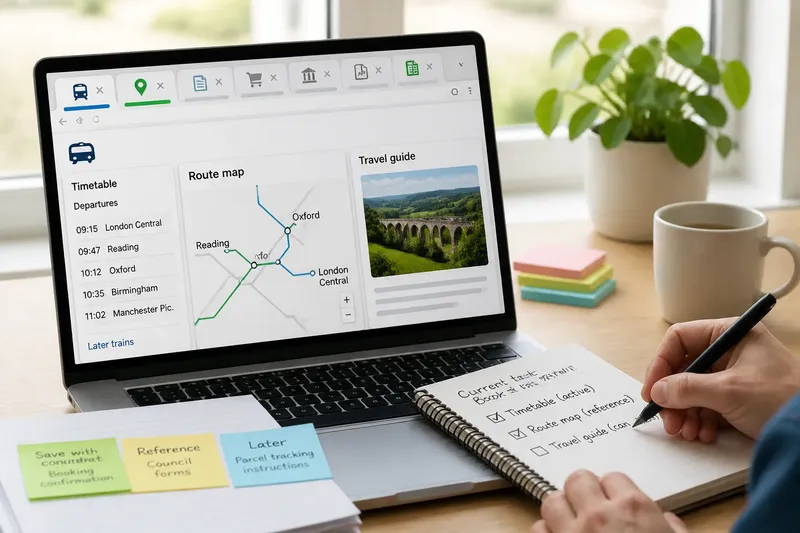
Say you are booking a train and have the operator’s timetable, a route map and a general travel article open. The timetable is the active tab; the map may be a useful reference if you are checking a connection; the article can wait or close if it no longer answers a specific question. The visible result is a bar led by the page that supports your next action, not by whichever page you opened first.
Make the decision based on the page’s job, not its age. An older tab can still be central to the task, while a page opened moments ago may already have served its purpose.
What is worth keeping as a reference?
A reference tab earns its place when you expect to return to a particular detail: a booking confirmation, a product’s specification page, an official instruction page or a document you are comparing with another. A tab that merely repeats a broad search result is less useful if you can find it again with a clear query.
Give reference pages a quick identity check before keeping them. Read the title, look at the site name and, if needed, glance at the address bar. This helps distinguish an official service page from a lookalike result, and a useful document from a page that has redirected somewhere else.
When several tabs serve one reference task, group them if your browser supports tab groups. Use a short name tied to the task, such as “Kitchen dimensions” or “Council forms”, rather than a vague label such as “Research”. A group should make return easier; it should not become a second hiding place for pages you have not decided about.
Should you save a tab or close it?
Use a simple distinction: keep open what you will use soon, save what you may need later, and close what has no clear future use. “Save” can mean a bookmark, a reading-list entry or a note containing the page title and address. Choose the method you already check, rather than creating a new storage system that will be forgotten.
Before saving, ask what would help you recognise the page later. A bookmark called “Help” is hard to identify; “Parcel tracking instructions” gives you a useful clue. For a page that changes over time, such as a live schedule or account screen, save the service address and a note about what you need to find there rather than assuming the current view will persist.
Close pages that have finished their job, duplicate versions of the same result and accidental detours. If you are uncertain, inspect the title and address first; do not keep every tab simply because its contents might conceivably matter.
How can you decide what to do with awkward tabs?
What if several tabs look identical?
Open each title carefully or hover over it if your browser reveals more information, then compare the site and address. Keep the version that contains the needed result, and close duplicates once you have confirmed they are not separate steps in a task.
What if you cannot remember why a tab is open?
Give it a brief inspection: read the page heading and scan for the detail you might have been seeking. If no concrete use comes back to mind, close it or save it with a specific note rather than leaving it as an unnamed reminder.
What if a tab contains work you have not submitted?
Do not close it until you know whether the page has saved your changes. Look for a saved-state message or use the service’s own save control, then decide whether to keep the page open; for important work, follow the service’s guidance on saving and recovery.
What if you need the page on another device?
Use a bookmark, reading list or the browser’s own tab-sync option if it suits your account and settings. Check that the saved item is available where you need it, especially before closing a page that is difficult to locate again.
When is a saved tab actually useful?
Saved pages work best when they carry enough context to be recognised and are stored somewhere you can retrieve them. A bookmark folder for a specific ongoing task can be more useful than a long list of generic links. If a page is only relevant to a short-lived task, a temporary note may be easier to clear once the task is done.
Consider the information visible in a tab before leaving it open on a shared screen or device. An account page, private message or form may expose personal details to someone who uses the device next. Close or sign out according to the service’s options when you have finished, rather than treating the tab bar as private storage.
How should you reset the bar between tasks?
When you finish an activity, make one pass through its tabs: retain the page needed for the next action, save any reference with a useful name, and close the rest. Then move the next task’s active page to the front. This small boundary prevents yesterday’s errand from obscuring today’s work.
If your browser offers a recently closed tabs list, treat it as a recovery aid, not as a filing system. It may help when a useful page was closed by mistake, but it is not a dependable substitute for saving a page you know you will need later.
A clearer browser tab bar comes from making each open page justify its place by immediate need, reference value or a specific later use. Before closing the window at the end of a task, save the few pages you can name and let the rest go; that leaves a more useful starting point next time.